
I have some ideas to share with you, based on my last 24 hours of blogging.
Add Images as Galleries
Have you noticed that when you blog a single image, it’s not clickable and stays small? Like this:

It’s a very large and pretty image but nope, can’t click.
And this is clickable (well, at least clickable from the website veselin.blog):

I used the Image block for the first and the Gallery for the second. So if you want your image to be clickable, use the Gallery instead of Image for single images as well.
You can type /gallery in the editor to quickly find the block. It will appear after /ga or /gal.
You Can Post Photo Comments
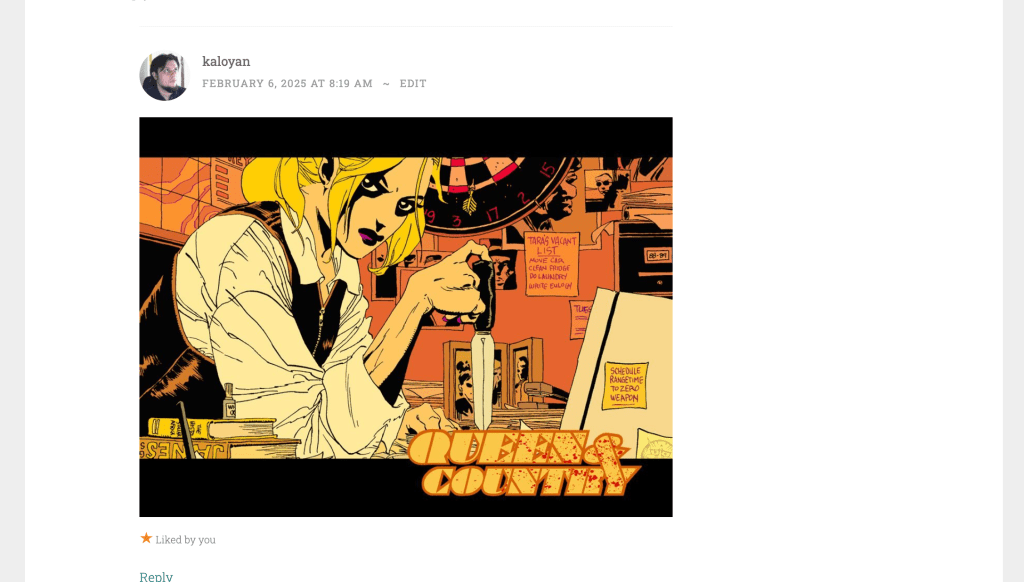
This only works when you go to the person’s site and post a comment from WordPress, and not the Reader or the comment notification. The Gutenberg Editor for comments supports adding an Image block where you can copy/paste an address pointing to an image. Just select reputable sources for your images or they might go away soon.

Use Featured Images for Your Posts

The latest version of the Jetpack Mobile app no longer uses the first image from the post on the Mobile Reader and this will likely cause lower engagement with your posts on Mobile if you don’t manually add featured images. The following screenshot shows 2 posts with a featured image, and two without. Despite having a photo on your site, it will only be viewed after a click. Will anyone click a post called “Stesi” with no explanation and no photo? Probably not.
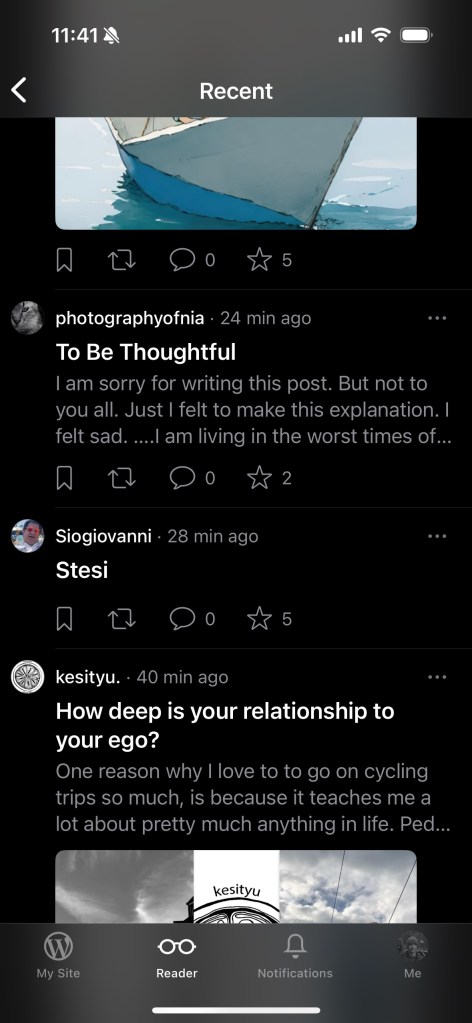
Note that the web Reader is unaffected and will still show your first image as featured without doing this.
Resize Images Before Uploading
It’s very easy to consume all of your space if you don’t resize the photos before uploading them. The default photos that my phone generates are 5-9MB each. Scaling them down to 2000x1500px makes one photo under 1MB and I can upload more than 1000 photos per GB of used space.
Do you have any tips about using images on your blog?

 Veselin.blog
That’s so great that you shared this! So many don’t know about how to use images on their blogs. And hey, Veselin! I’m back officially. Well, without a blog, but with a WordPress account. Apparently you can create a WordPress account but without a blog, so I did that. I’ve missed my guys so much that I had to create this account when I found this out.
I don’t know how active I’ll be, though, but I’ll be here as often as possible ❤️
LikeLiked by 1 person
Welcome back, AM!
LikeLiked by 1 person
Thanks! I hope it will work out.
LikeLiked by 1 person
I noticed that the images had stopped showing in the highlights of the post. I thought adding the images via the image block was handy. Is it the tool from hell.😂
LikeLiked by 1 person
I submitted an issue and they may return at some point but meanwhile, featured images are a must.
LikeLiked by 1 person
Huh, I’m surprised we do not offer to do that by default. Seems like a quick win all around.
And another TIL! Thank you for sharing.
LikeLiked by 1 person
Maybe we should.
LikeLiked by 1 person
Thank you!
LikeLiked by 1 person
You are welcome!
LikeLike
Just as an fyi, you CAN make an image block picture clickable. You just have to add the url to it by clicking the link button once you’ve added it to your post.
I also have some thoughts on resizing and space, but they are linked to two posts of mine. Before I go getting all link happy, is it ok if I put both of the links in a reply to this comment?
LikeLiked by 1 person
Thanks for providing an alternative:) yes, feel free to link in the comment.
LikeLiked by 1 person
Thanks. After being spammed by someone, who I don’t think meant to spam, but she included a link to her latest post in every single comment she left, I’ve been much more aware of the etiquette of linking.
LikeLiked by 1 person
Thanks for sharing your guides!
LikeLiked by 1 person
You are welcome. Anything that can help someone on WP is of interest to me. ESPECIALLY since they cut the storage space for new people to 1gb. That was just a total *selfcensored~ move on WP’s part…
LikeLike
The storage costs went up 🤷♂️
LikeLiked by 1 person
Btw I used to be a paid subscriber to Dropbox. It stopped working while also preventing the OS from syncing images. Their support acknowledged the problem but didn’t fix it. So I’d say resize your images 🙂
LikeLiked by 1 person
Oh, I only use the free version of dropbox online. I ONLY use it as additional storage space for pix. Anything over 150K and I link by url to the pix in the post. Saves me a lot in the long run.
But that is why I did the two posts. Sometimes both work for people (like me) but sometimes only one or the other is a viable option.
LikeLiked by 1 person
I believe that if I’m not paying for a product, I’m the product. I used the paid Dropbox…
LikeLiked by 1 person
I’ve liked Images to Image File and it allows an image to be clickable. Or do I misunderstand what you’re explaining?
However there is a new problem and that’s with comments. I wasn’t able to comment on your website and had to go to Reader. This is happening for a few bloggers right now.
Maggie
LikeLiked by 1 person
Really? What happened when you tried to comment? Also, what browser do you use?
LikeLike
Google chrome, but it happens from my phone too if I’m on the website. It is happening to quite a few people, I’ve had comments from followers on my posts that they had to leave messages other ways. The screen goes white except for a caption at the top that says something like Not Allowed. Comment not sent.
I’ll take a screenshot next time. It happened on your blog today.
LikeLiked by 1 person
Thanks, I’ll try to reproduce it.
LikeLike
One blogger said she could not comment on my most recent post ‘Day Trips from Seville’ but could on Beautiful Seville post only a few minutes later.
LikeLiked by 1 person
Okay, I’ll do a detailed test of both my and your blog in the morning. In case I manage to replicate this issue, I’ll report it to the right engineers. Thanks for letting me know, I had no idea. Never happened to me but I rarely leave the mobile app for comments.
LikeLiked by 1 person
Hi, I know this is your personal blog, but just wondering if you were able to look into this? It is still happening and occurs in about 50% of the comments I try to make. Maggie
LikeLike
Do you see “Your comment cannot be posted?”
LikeLike
I think I managed to reproduce one problem, which is the text “Sorry, this comment could not be posted.” when posting on one of your posts. Reloading the page fixed it and I couldn’t reproduce after that.
Is that what you see?
LikeLike
Yes, so all you did was reload the post? I’ll try it. I hope that’s the answer. Thanks
LikeLiked by 1 person
Yes but it’s still not normal, especially if you see it that often. It’s a bug of some kind.
LikeLike
Should I report it?
LikeLiked by 1 person
I created an issue to the Jetpack repository about it and will ping the colleagues to assign it.
LikeLiked by 1 person
Update – no need to report it, it’s already known and there’s a public issue where you can see the progress:
https://github.com/Automattic/wp-calypso/issues/99436
LikeLike
The last two testing comments from you require moderation.
LikeLike
Good read 💯
LikeLike
Can’t get my comment to take hold.
LikeLiked by 1 person
What happened?
LikeLike
Let me try again. What a cool article. I guess I never tried clicking on my images in the library. I did try clicking on the two boxes in the upper left but saw no difference. What did I miss?
LikeLiked by 1 person
I mean, what do you mean by comment not holding?
LikeLike
I only meant I got a message saying comment not accepted. I subscribed and then retyped my question and it went through.
LikeLiked by 1 person
Was it like this:
LikeLike
Yes. I really liked this post, Veselin.
LikeLiked by 1 person
Thanks, the comment problem is mysterious. Trying to find a way to reliably reproduce it so it gets fixed.
LikeLike
WP does offer a few edit features for images, like removing edges and focusing on the most important part of the photo. Sometimes I transfer a photo to Canva.com. They provide even more features for producing a near-perfect image. Then it’s a matter of downloading the photo to your computer so it can be accessed by WP.
LikeLiked by 1 person